Preference Settings
In the add-on preferences, you'll find the following settings:
General Settings
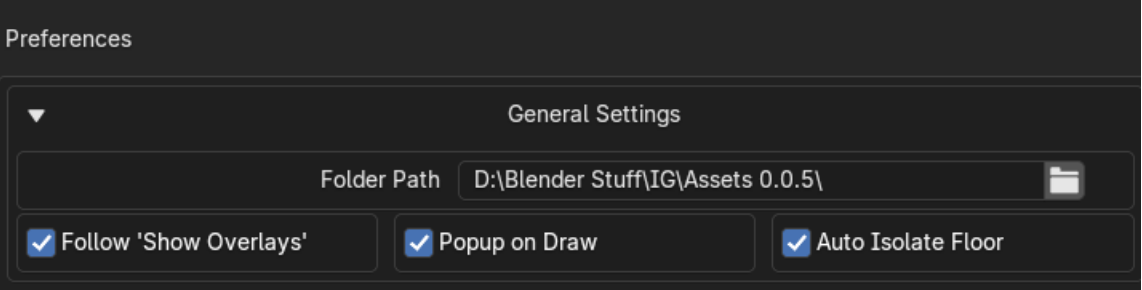
In addition to the Folder Path label, where you've previously selected the assets folder, you'll find three options:
-
Follow "Show Overlays": When enabled, the add-on's overlays will automatically hide when you disable the Show Overlays button in the viewport.
-
Popup on Draw: When you create a new element—like a door or a staircase—a floating window will appear, allowing you to quickly adjust its parameters. If you'd prefer not to see this popup, simply disable this option. You can always access each element's parameters through the Parametrize tab.
-
Auto Isolate Floor: When this option is enabled, the Isolate checkbox under the Floor Management tab will be automatically activated. This hides the ceiling so you can easily view and work inside the room.
Snapping Settings
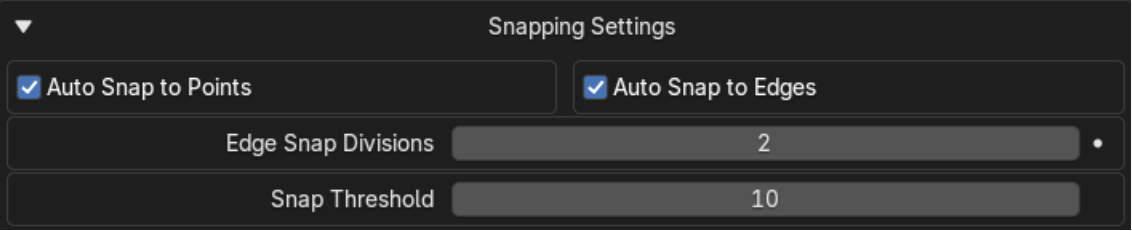
In this tab, you'll find settings to adjust:
- Automatic snapping to points or edges
- Snapping threshold
- Edge subdivisions
Theme Settings
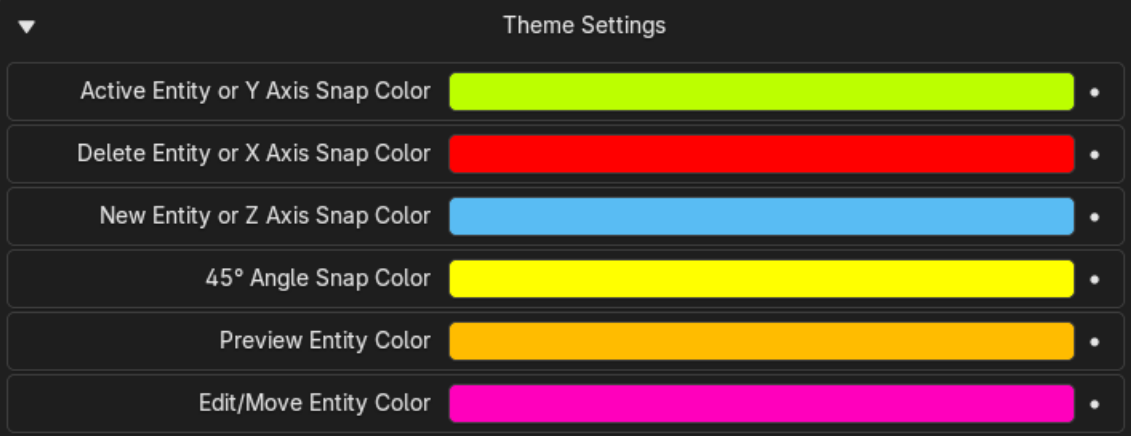
Here, you can customize the colors of the add-on's overlays.