Adding the Asset Library
Inside the downloaded package, you will find a folder containing the Asset Browser files. Make sure not to confuse this folder with the add-on installation file. Unzip the folder and place it wherever you prefer on your computer.
To register this folder as an asset library:
- In Blender, go to Edit > Preferences.
- Open the File Paths tab.
- Locate the Asset Libraries section and click the folder icon to add a new path.
- Select the unzipped asset folder.
- You may rename the library from within the File Paths panel if desired.
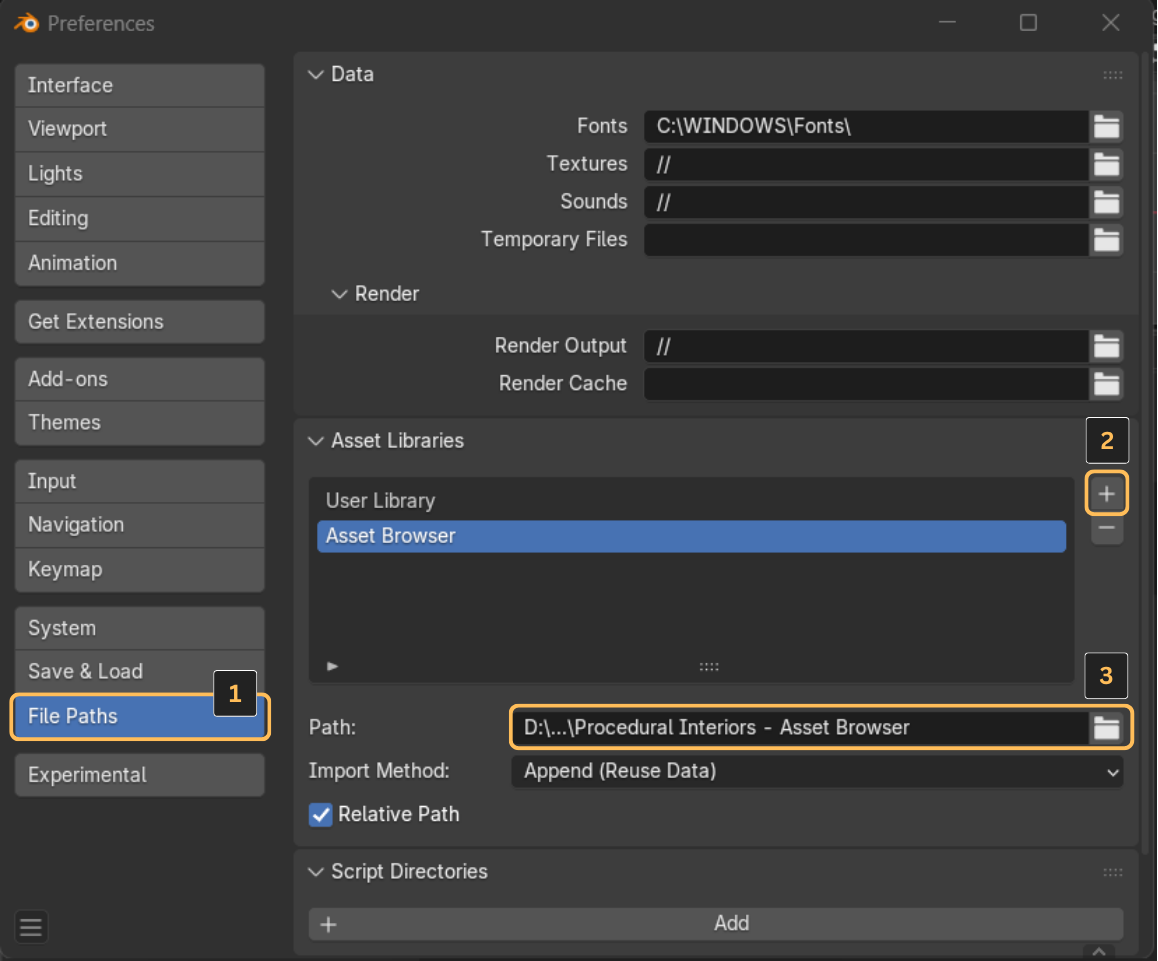
Once added, the assets will appear inside Blender’s Asset Browser under the name you assigned.