Using the Assets
Open the Asset Browser (usually found in the Shading, Layout, or Modeling workspaces). From the library list, select the Procedural Interiors library. You will find:
- Materials
- Furniture models
- Parametric procedural assets
To use any asset, simply drag it from the Asset Browser directly into your scene.
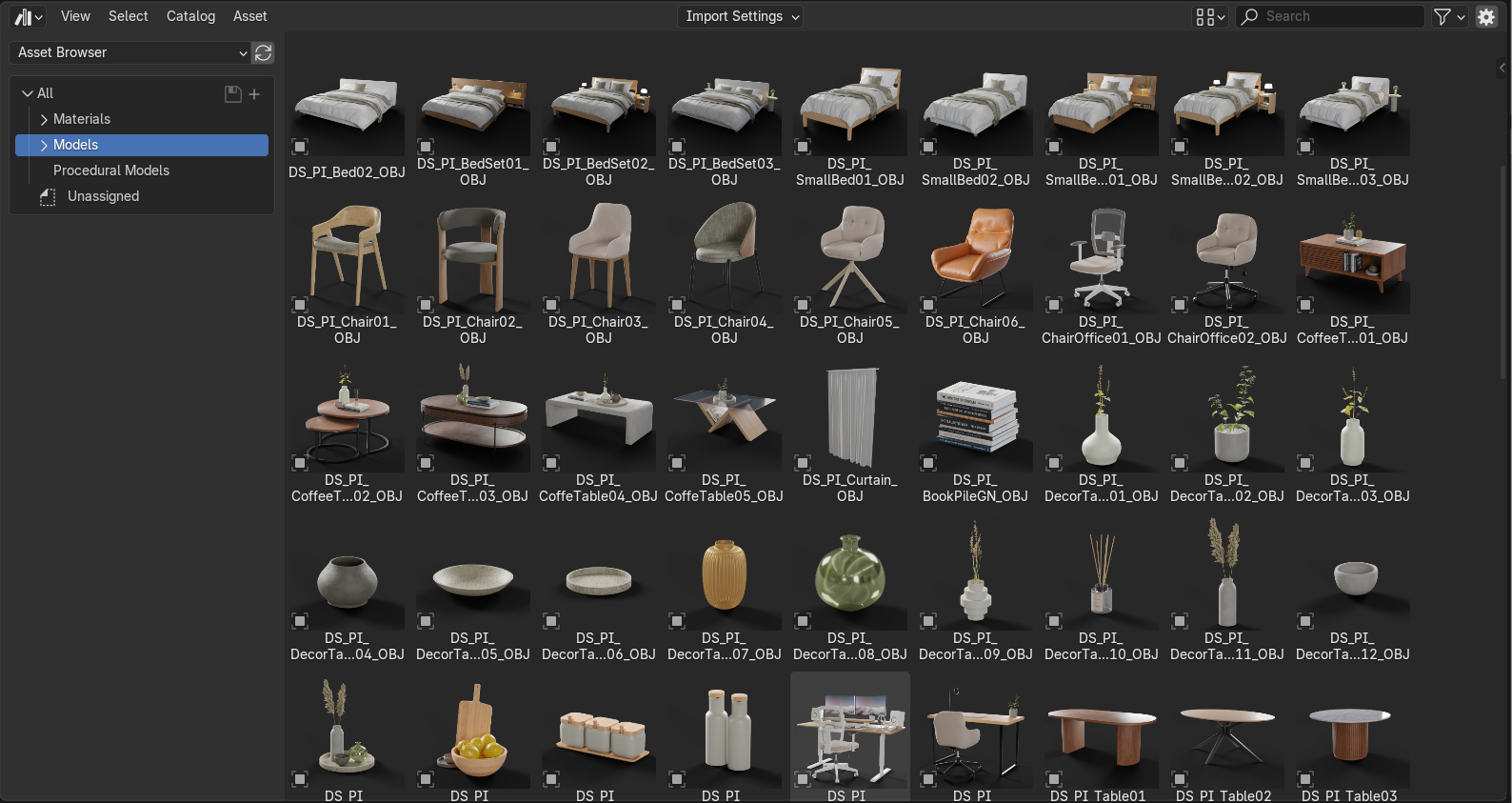
Materials
To replace a material on an existing object, drag a new material from the Asset Browser and drop it onto the object. The material will update automatically.
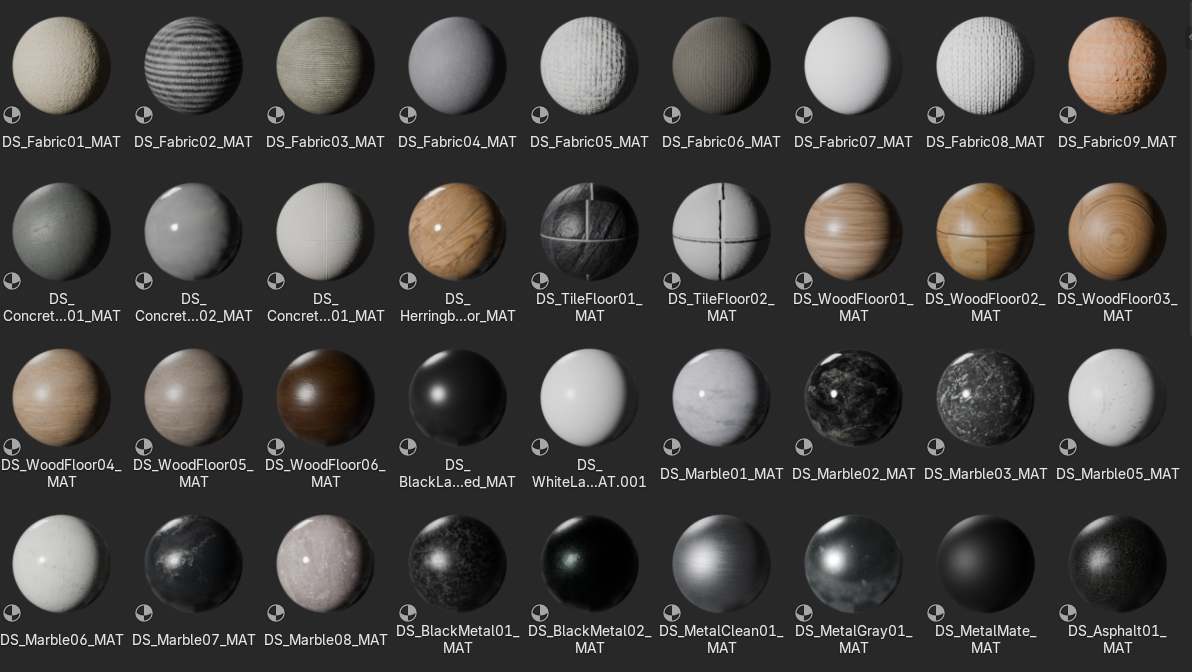
Furniture and Models
Furniture and models can be freely combined with any other objects in your scene. Drag and place them anywhere as needed to furnish your interior.
Some procedural assets may import additional helper models depending on their internal settings. If this happens, you can hide any unnecessary objects from your Outliner or collection tree to keep your scene organized.
Adjustable Elements
Several assets, such as doors, windows, and staircases, support further editing:
- Doors & Windows: Enter Edit Mode to adjust their width or proportions.
- Staircases: Edit Mode allows you to modify their geometry, including creating up to three connected sections.
- Parametric Assets: Many assets include modifiers that expose additional parameters. These can be tweaked from the Modifiers tab.
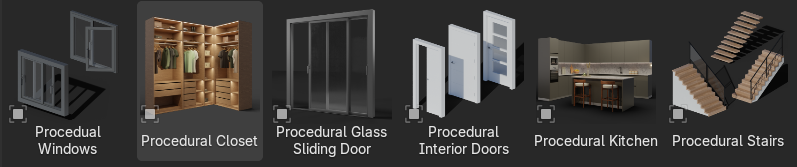
Adaptive Furniture
Some furniture pieces are designed to adapt automatically to the shape of the room. After placing them in your scene:
- Enter Edit Mode if you need to adjust their outline to fit your space.
- Use the Modifiers tab to fine-tune any exposed parameters, similar to other procedural assets.