Furnishing Presets
In this tab you will be able to assign different room presets to your predefined areas (Created with the Layout Tool).
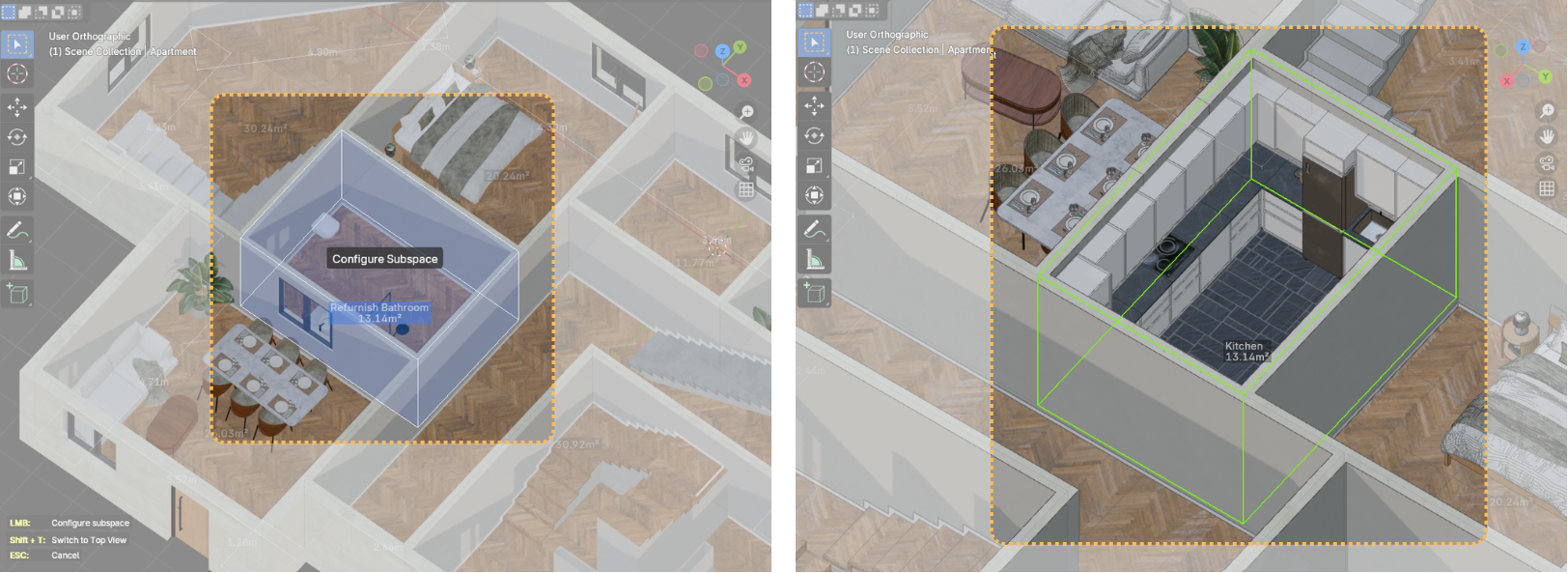
Start by choosing a Room type (Living Room, Kitchen, Bedroom…) and selecting a layout preset from the thumbnail viewer, then by clicking “Furnish Subspace” you can hover on any of the active floor’s areas and clicking. For the best results, Choose a rectangular Area with 4 corners.
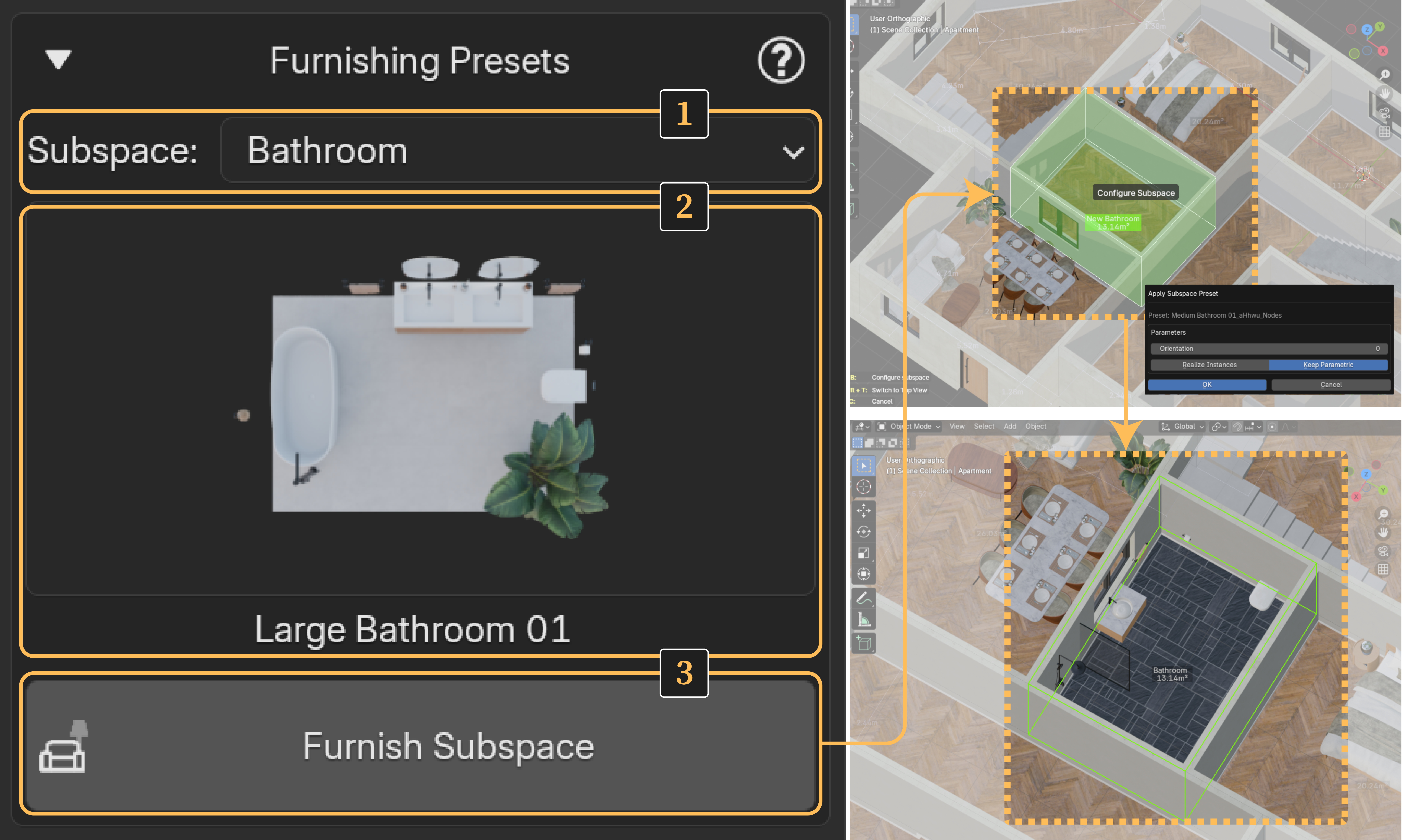
A popup menu will appear to allow you to parametrize the subspace, each subspace has their own set of parameters but two are common to all of them:
Orientation: This will allow you to place the furniture on different walls of the room
Realize Instances or Keep Parametric:
-
Realize Instances will apply the parametric object and allow you to control the position, rotation and scale of each furniture item independently, this gives you total freedom on the furniture objects but loses proceduralism.
-
Keep Parametric preserves the parametric control of the subspace until applied later.
Presets are separate objects from the main structure. If you've selected the Keep Parametric option, you'll be able to access that preset’s parameters from this tab as well.
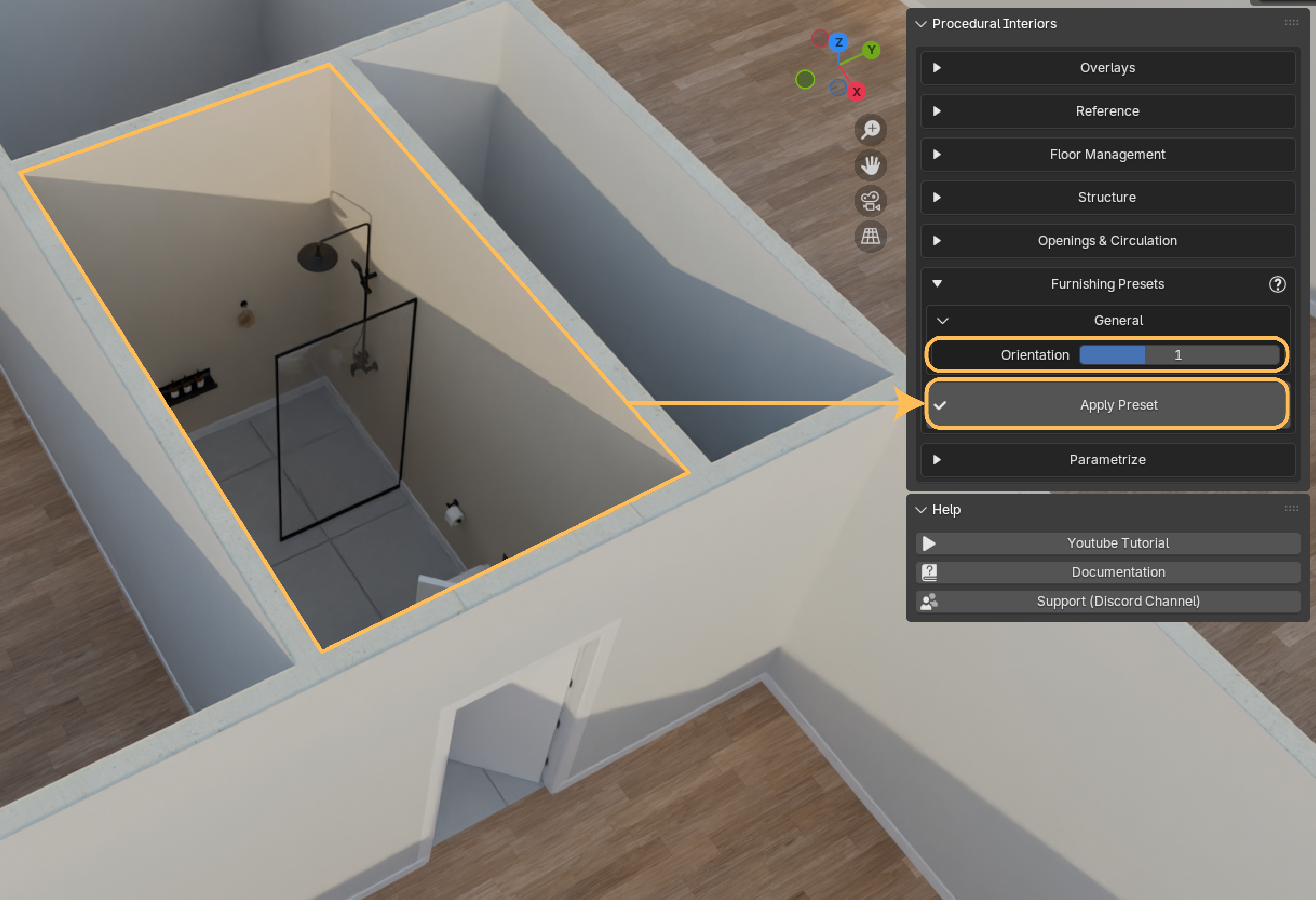
Once you’ve finished adjusting the preset settings, if you want to edit each asset individually, click the Apply Preset button. The contents of this tab will change depending on whether you have the main structure or one of the presets selected.
You can reuse the same button to “Refurnish” a subspace - Converting it to another Type or Preset