Parametrize
The Parametrize tab will allow you to change parameters of any element that you previously created. There are 3 options:
- Parametrize All Instances
- Parametrize Active Floor Instances
- Parametrize Individual Instances
Parametrize All Instances
This will allow you to select all instances of the given Element across all floors of the model. Start by selecting an element type (Window, Door, Stairs..etc). If you have overlays enabled, you should see instances of that element highlighted in green. the corresponding parameters will be displayed in the UI that you can set to the desired values.
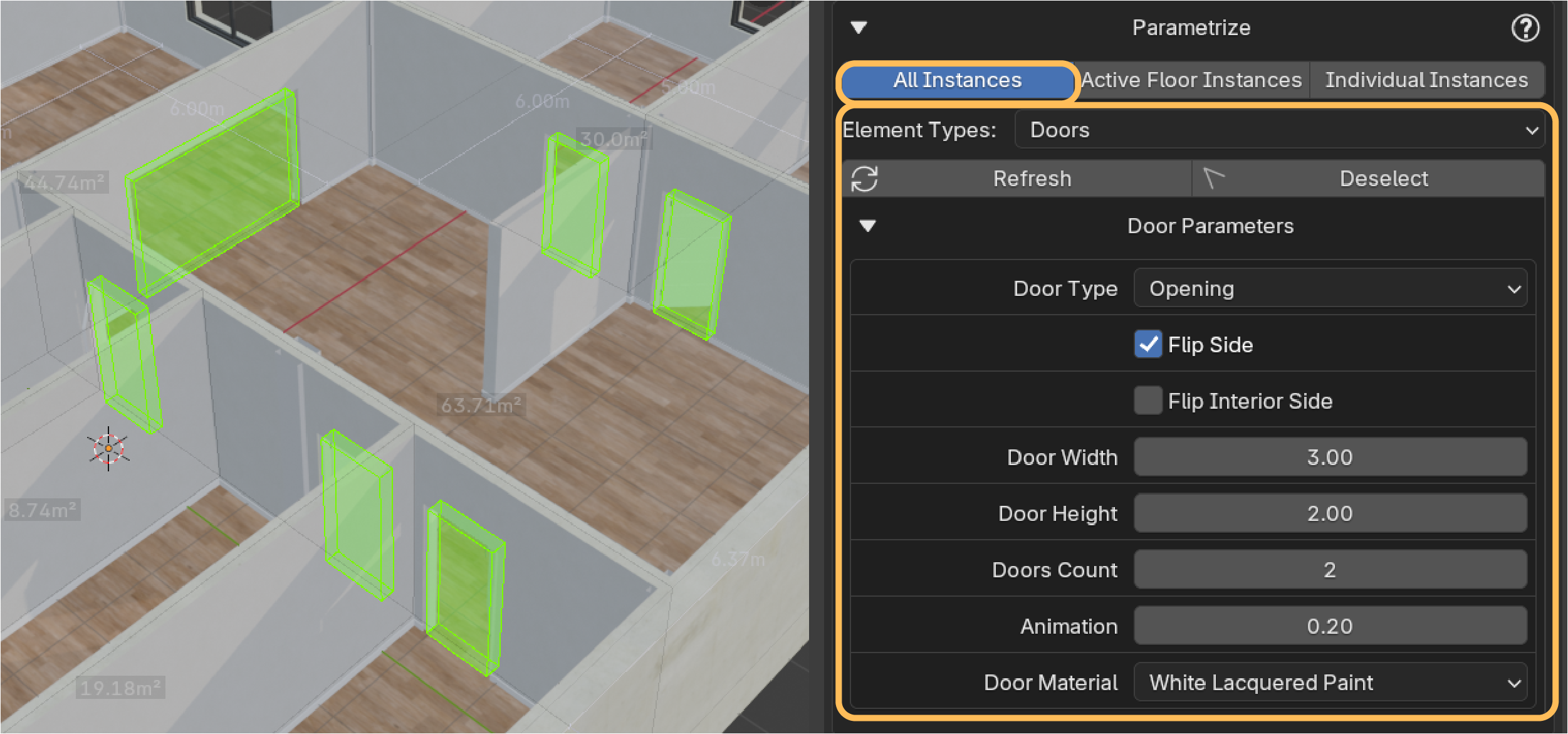
Refresh / Deselect Refresh will recompute affected Instances & Reselect them appropriately Deselect will de-highlight elements in the 3D view Note: Parameters may not hold the current values of the parameters, re-input them to take effect.
Parametrize Active Floor Instances
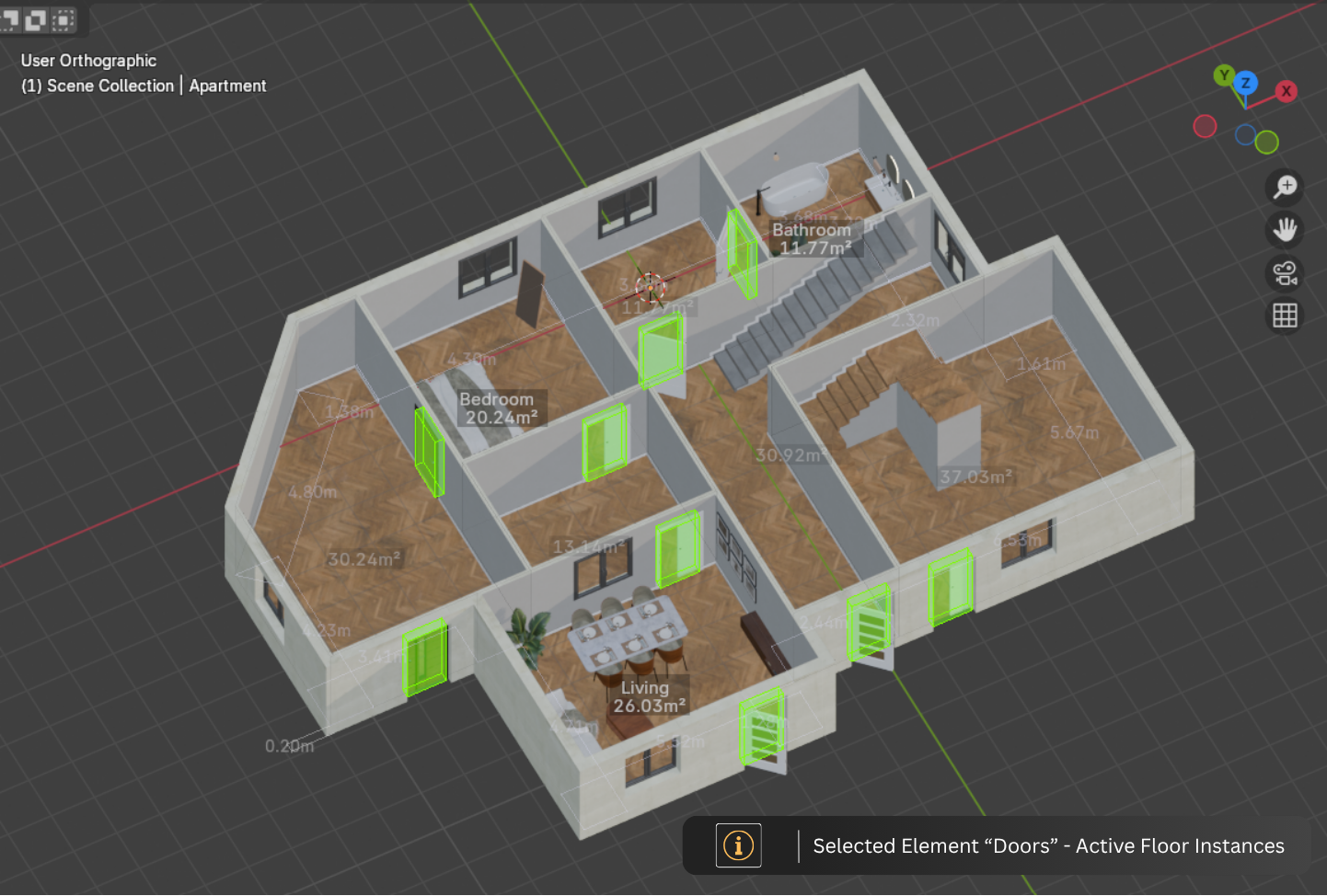
The difference with the previous tab is that this option allows parametrizing elements on the given active floor level. The image below shows “Doors” as the selected Element at Ground Floor Level. Changing parameters will affect all the highlighted doors.
Note: Remember to select the correct floor in the Floor Management Tab
Parametrize Individual Instances
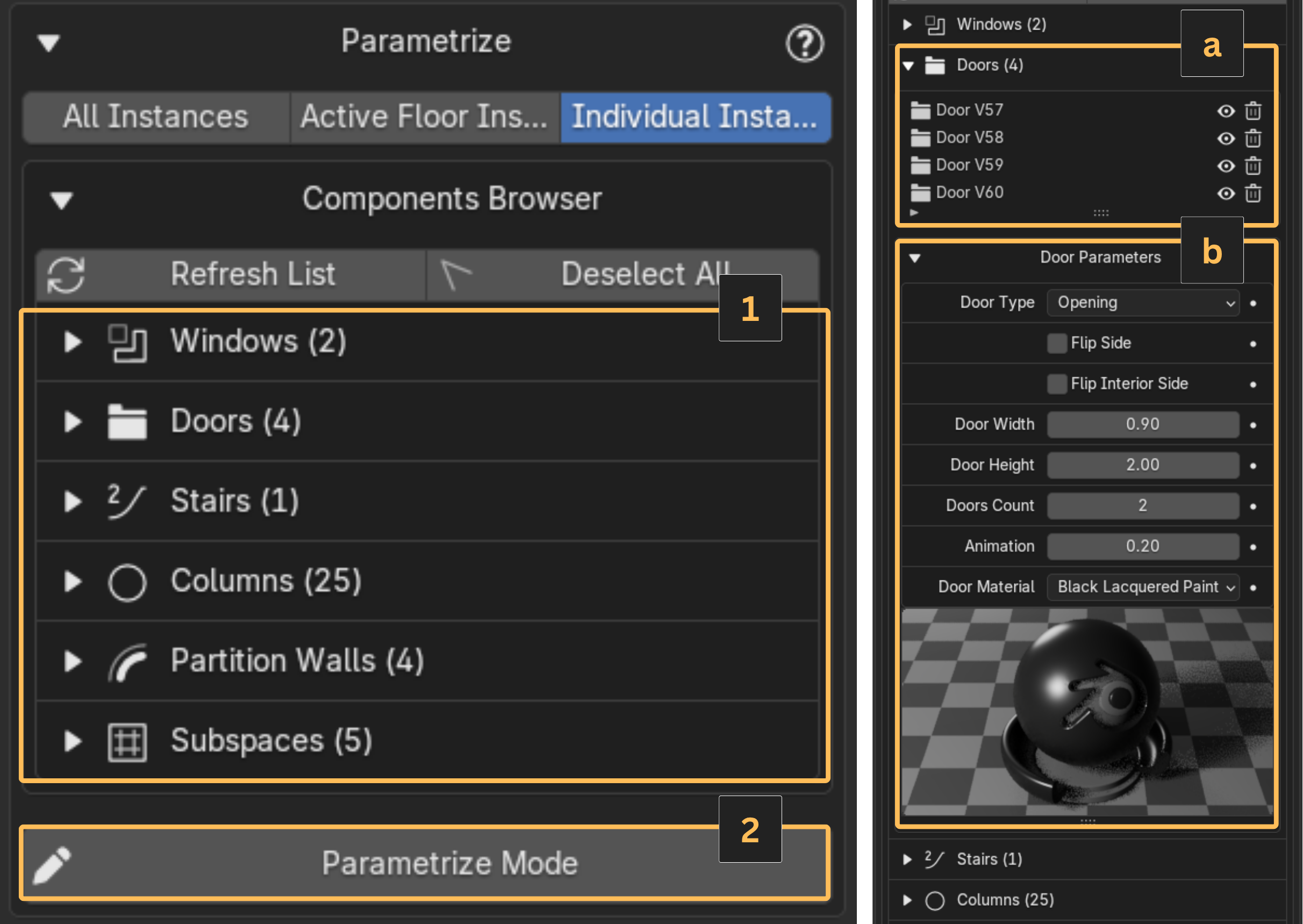
This will allow you to parametrize Individual Element Instances. you have two ways of achieving this: Through the Components Browser Using the Parametrize Mode Button In the Components Browser (1), you can select an element type to view its available instances in the active floor (a). For each instance, you can: Select an instance - this will highlight it in the viewport if Overlays are enabled Hide or Delete the selected instance See and edit its parameters (b) Individually (this will only affect the highlighted instance)
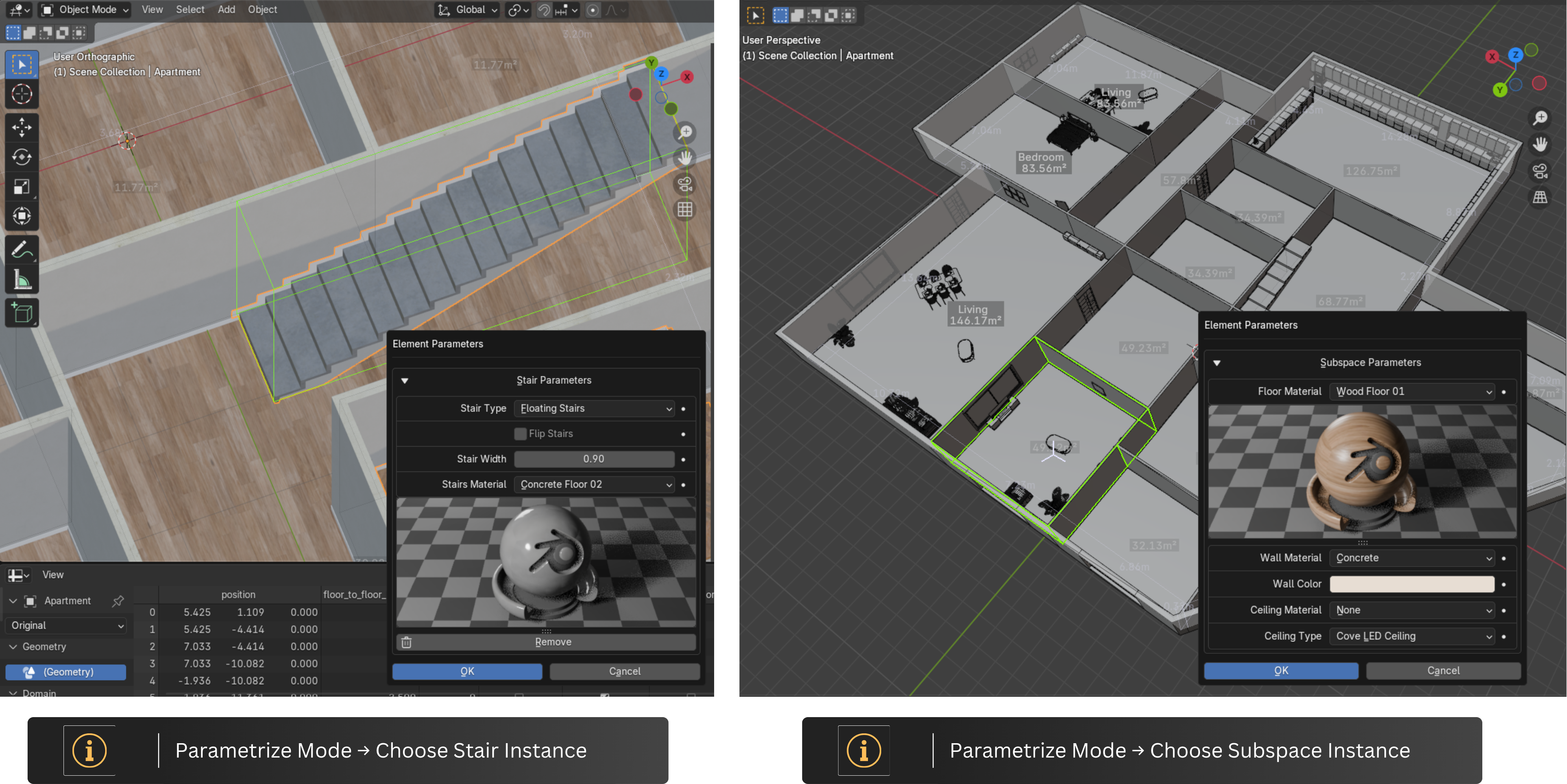
Using Parametrize Mode: you can hover and select elements in the 3D View to Show their parameters in a popup menu